iPhone recording guide
Record video while reading a script on iPhone
Keep the reading line close to the camera, slow the text to your natural delivery, and rehearse the pauses that make the words sound spoken rather than read.
Choose the recording setup
One iPhone with a teleprompter app is the simplest setup when the app can show the script and camera together. It keeps your words, recording controls, and take on one device.
A second phone, tablet, or laptop can still be useful when you need the native Camera app, a specialized recording app, the rear camera, or more space for text. Put the script device immediately beside or above the recording lens; a large gap makes your gaze travel farther.
Front camera or rear camera?
| Choice | Useful when | Trade-off |
|---|---|---|
| Front camera | You need to frame yourself and work alone. | Image options depend on the iPhone model, but setup and framing are easier to monitor. |
| Rear camera | You have help framing the shot or can run a test first. | You cannot watch your own framing as easily from behind the phone. |
Apple documents that available formats, frame rates, camera switching, and recording controls vary by iPhone model. Check the options shown on your device rather than assuming every model behaves the same. See Apple's guide to recording video with the iPhone camera.
Keep the reading line close to the lens
Your eyes move toward the words you are reading. The practical goal is therefore not to “hide” reading—it is to reduce the distance between the active text and the lens.
Closer gaze
Lens and reading line remain close together.
Visible travel
Your gaze has a longer distance to travel.
Set text size and width before speed
Use text large enough to read without leaning forward or narrowing your eyes. Keep the line width moderate: if a line stretches across most of the screen, your eyes may scan from side to side. Shorter lines near the camera usually require less horizontal travel.
Then set the scroll speed. A good starting speed is one that feels slightly easy during rehearsal. If you repeatedly rush the final words of a sentence, slow it down. If you wait for every next line, increase it gently.
Distance and phone position
- Place the lens near your eye level unless the shot deliberately needs another angle.
- Move far enough away that small eye movements are less visually dominant, while keeping the text comfortably readable.
- Use a stable stand. Hand movement makes reading and consistent framing harder.
- Leave room around your face so a small framing correction does not ruin the take.
Rehearse the delivery, not just the words
- Read the script once without recording.
- Mark pauses where the thought changes—not only where punctuation appears.
- Run a 15- to 30-second camera test.
- Watch for rushed endings, long downward glances, and repeated side-to-side scanning.
- Adjust text width, size, position, or speed before the full take.
If the script is too long for the intended video, fix that before rehearsing repeatedly. The free script-duration calculator converts your word count into an estimated speaking time and can calculate a word budget for a target duration.
Lighting still matters
Put a soft light or bright window in front of you rather than directly behind you. Avoid placing a bright script screen in an otherwise dark room: lower the display brightness to a comfortable level and add light to your face. Record a test because the useful balance depends on the room and camera.
Common failure modes
- The eyes sweep left and right: narrow the text column or increase the distance from the camera.
- The delivery sounds rushed: reduce scrolling speed and insert deliberate pauses.
- The gaze sits below the viewer: move the active reading area closer to the lens and raise the phone.
- The framing changes mid-take: stabilize the phone and finish a short test before recording the full script.
- The speaker loses their place: increase text size, shorten lines, and rehearse the transition points.
How PromptTake simplifies the one-phone setup
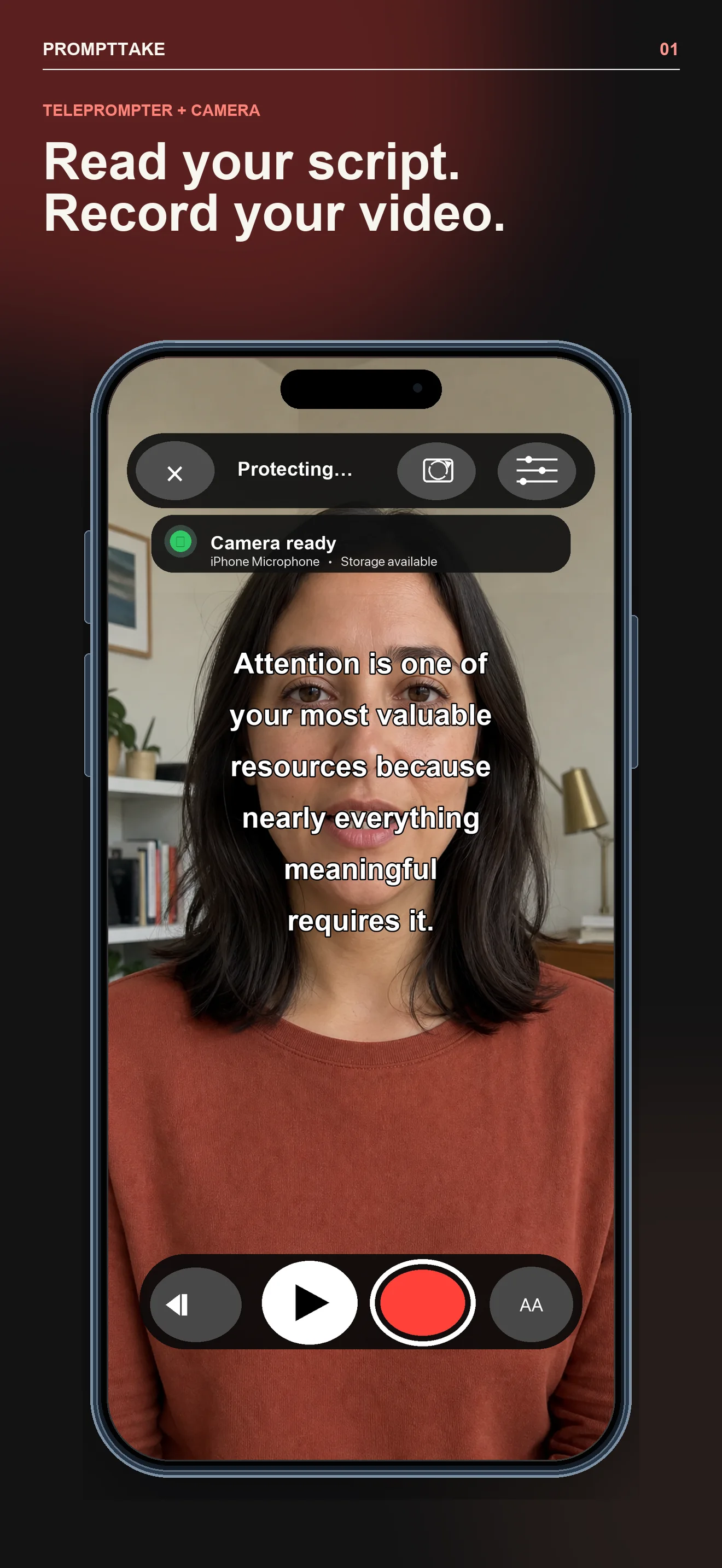
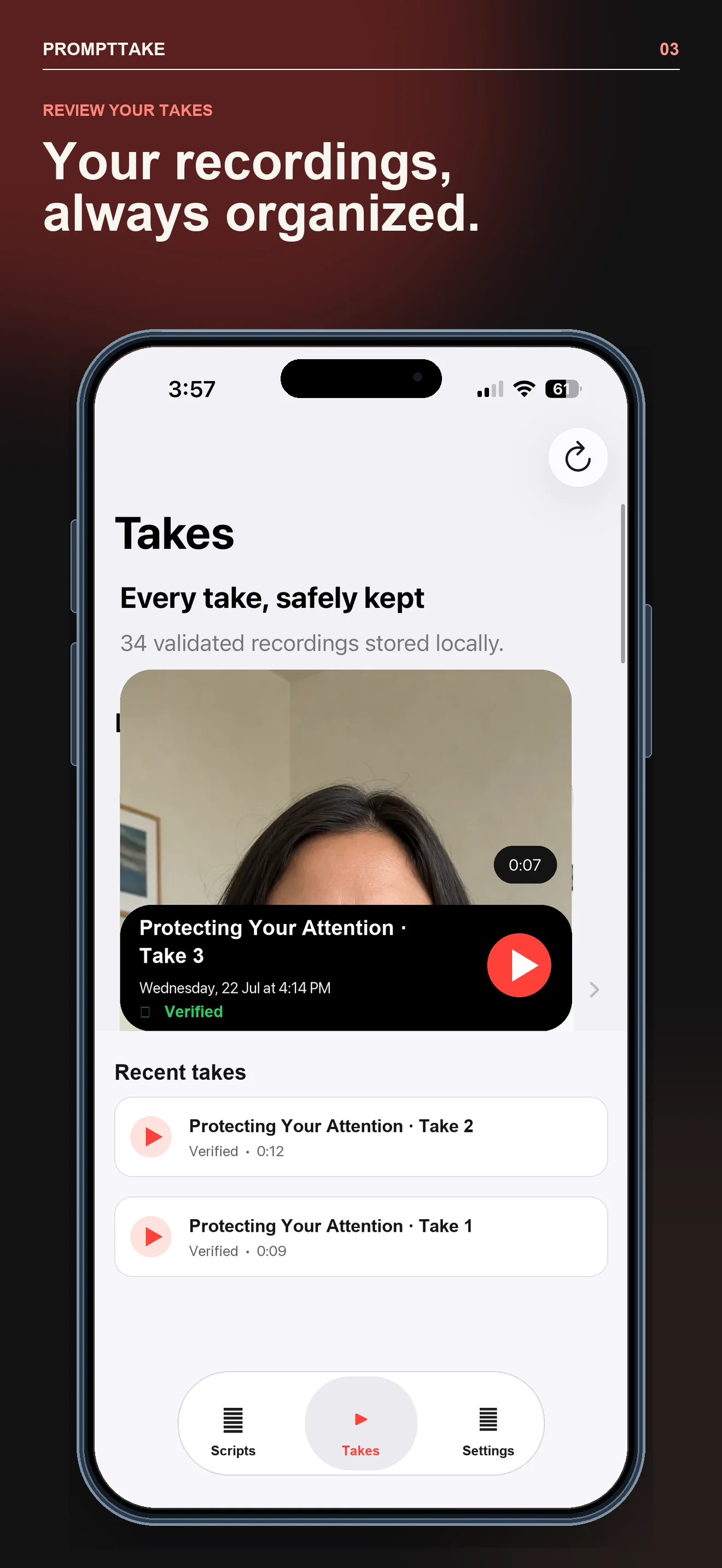
PromptTake combines the teleprompter and camera in one recording view. You can prepare the script, adjust text and speed, choose the front or rear camera, record, review the take, and export when ready. Scripts and recordings remain on the device unless you choose to export them.
Verified app workflow
Keep the words inside the recording view.
These are current PromptTake screenshots from the repository—not reconstructed website mockups.