Invoicing guide
How to Create an Invoice on iPhone
Create, check, export, and send a professional invoice from your iPhone using Apple Numbers or a dedicated invoice app.
Choose the workflow that fits the job
There are two sensible ways to create an invoice entirely on an iPhone:
- Use Apple Numbers or another manual template. This is practical for an occasional invoice when you are comfortable editing a spreadsheet and managing each file yourself.
- Use a dedicated invoice app. This is more useful when you send invoices repeatedly and want customers, services, numbering, dates, PDF preview, and saved documents in one place.
Both methods can produce a professional PDF. The difference is how much repeated setup and record keeping you manage manually.
Information to collect before you start
Have these details ready before opening the template or app:
- your business or trading name and contact details;
- the customer’s correct billing details;
- a clear description of each product, service, or milestone;
- quantities, hours, rates, and prices;
- a unique invoice number;
- the invoice date and agreed payment term;
- the resulting due date;
- applicable tax, discount, and payment instructions.
Requirements vary by country, tax status, and type of business. Verify the legal and tax fields that apply to you rather than copying another business’s invoice unchanged.
Method 1: Create the invoice in Apple Numbers
Numbers is Apple’s spreadsheet app. It is a reasonable starting point when you send invoices infrequently and do not need dedicated invoice management.
1. Start with a template
Open Numbers and go to the document manager. Tap Choose a Template; if that control is not visible, tap the Create Spreadsheet button. Browse the template chooser and open the invoice template available in your installed version.
Apple’s current Numbers guide confirms that templates contain placeholder content you can replace. The exact arrangement can vary with the Numbers version and region, so use the labels visible on your device rather than relying on an old screenshot.
2. Replace every placeholder
Enter your business and customer details, then replace the example invoice number, dates, line items, quantities, rates, tax, and totals. Check any formulas after inserting or deleting rows; a visually correct spreadsheet can still contain a broken total.
Rename the spreadsheet with a name you can find again, such as INV-2026-014 — Customer Name. Numbers automatically saves changes while you work, but you remain responsible for the numbering system and file organization.
3. Export and review the PDF
With the spreadsheet open, use the Share menu and choose Export and Send, then select PDF. Review the PDF layout options and export it. Apple’s current instructions allow you to send or save the exported copy through the iOS share sheet.
Before sharing, inspect the PDF itself—not only the spreadsheet. Check that no columns are clipped, the page count is sensible, the currency is correct, and the total and due date are visible.
For the current button sequence, see Apple’s official guides for creating a Numbers spreadsheet and exporting a Numbers file as PDF.
Method 2: Create the invoice in InvoiceCove
InvoiceCove is designed for the repeated invoice workflow rather than general spreadsheet editing.
1. Start a new invoice
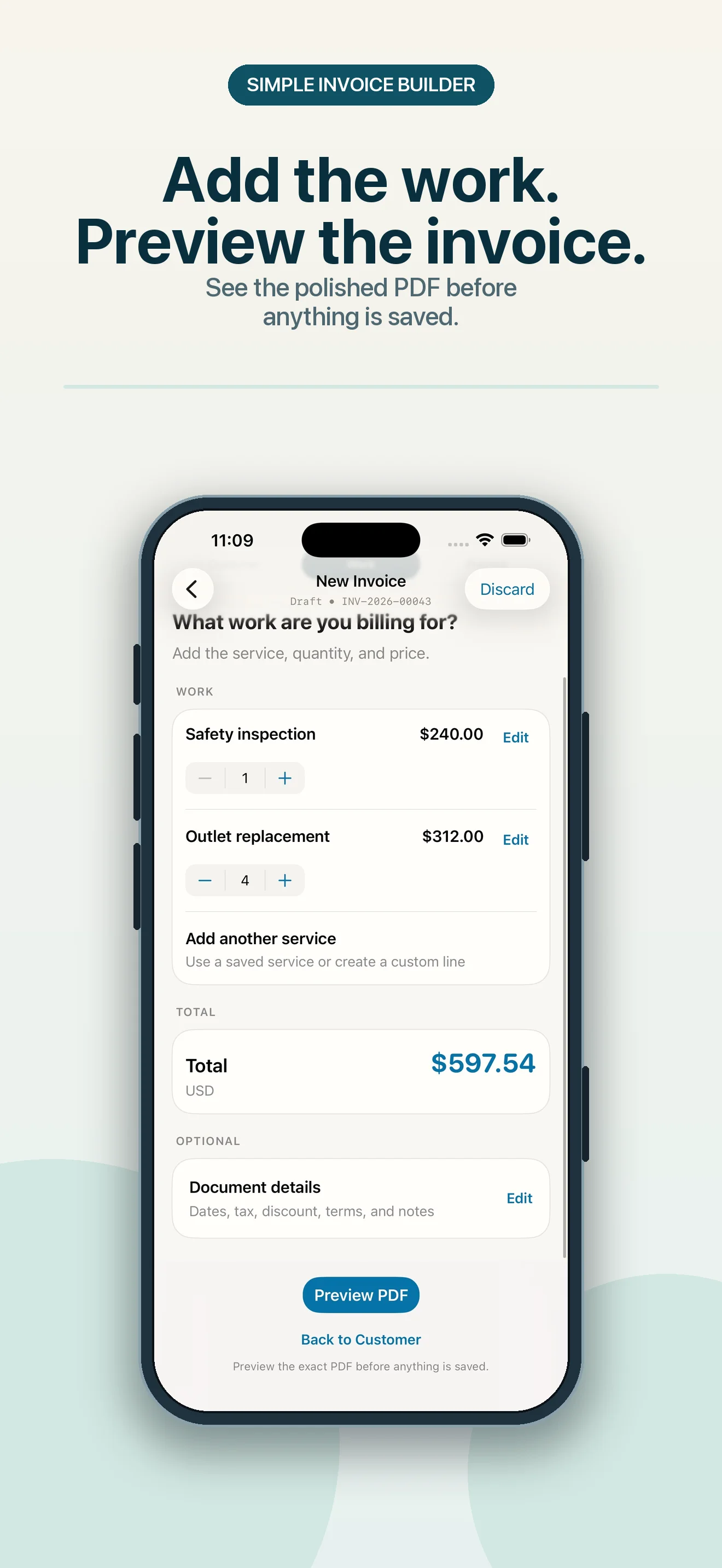
Open InvoiceCove and create an invoice. Add or select the customer, then enter the line items for the completed work. Saved customer and service details can be reused on later documents instead of being typed into a fresh template each time.
2. Set the document details
Review the automatic invoice number and add the invoice date, due date, and payment terms. Add tax or a discount only when it applies to the agreement and your business. InvoiceCove also supports estimates, but an estimate should not be presented as an issued invoice.
3. Preview the exact PDF
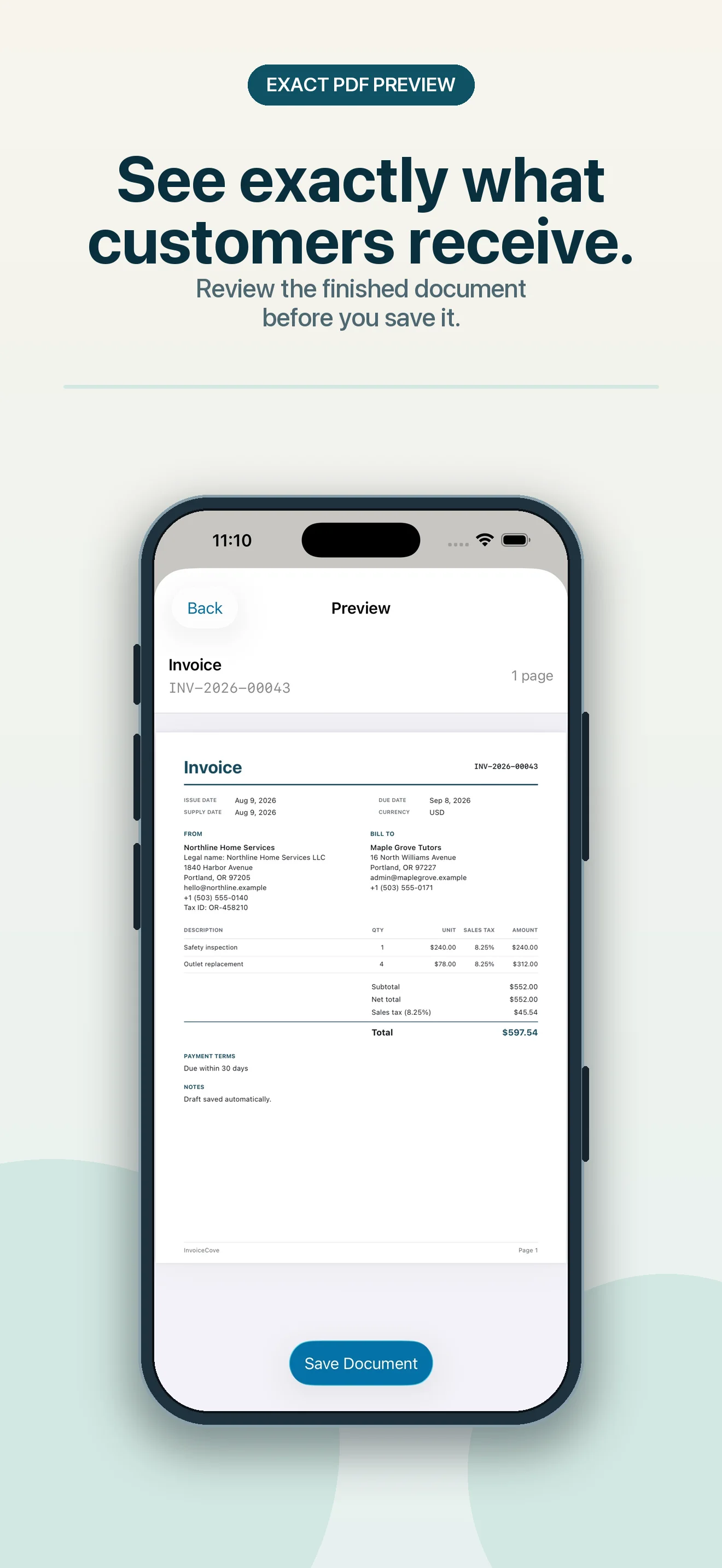
Open the PDF preview and check the seller, customer, invoice number, dates, line items, totals, terms, and payment instructions. The preview is the document the customer will see, which makes it the right place to catch layout or content mistakes.
4. Save, share, or print
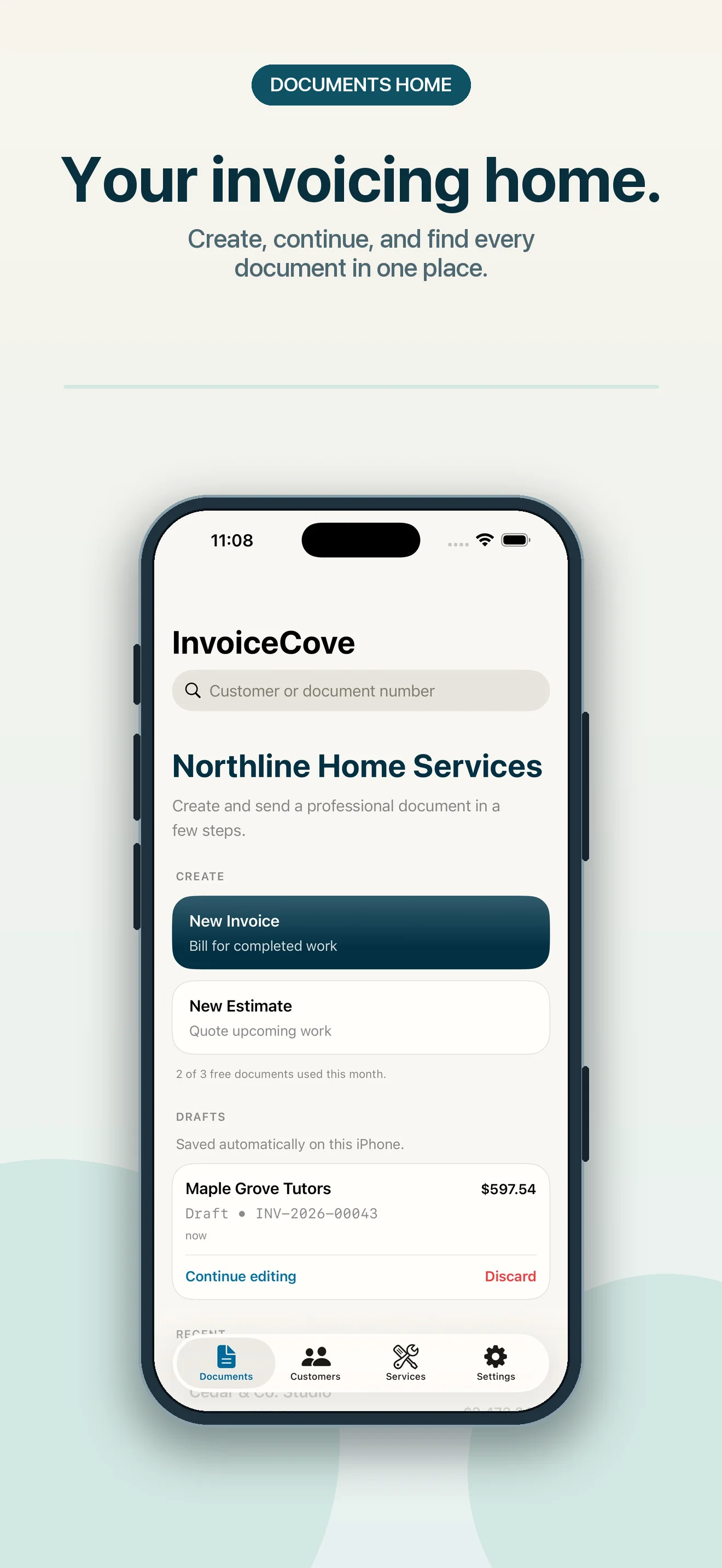
Save the finished document in InvoiceCove. You can then use the iOS system sharing and printing options for the generated PDF. The app keeps saved invoices and their paid, unpaid, or overdue status together; it does not process the customer’s payment.
Numbers versus a dedicated invoice app
| Task | Numbers or manual template | Dedicated invoice app such as InvoiceCove |
|---|---|---|
| First occasional invoice | Useful if you already understand spreadsheets | Focused form with less layout work |
| Customer and service details | Retype, duplicate, or maintain your own template | Reuse saved customers and services |
| Invoice numbering | Maintain the sequence yourself | Automatic numbering with document records |
| Formulas and totals | Check spreadsheet formulas manually | Calculated from entered line items, tax, and discounts |
| PDF output | Export through Numbers and review the result | Preview the generated PDF before sharing |
| Saved-document organization | Organize spreadsheet and PDF files yourself | Keep invoices and estimates inside the app |
| Payment status | Track it manually | Mark and review paid, unpaid, and overdue invoices |
Numbers is not a bad option. It gives you direct spreadsheet control and can be enough for rare invoices. A dedicated app earns its place when repeated data entry, numbering, PDF checks, and document status become the larger problem.
Final iPhone invoice check
Before sending either version, confirm:
- The seller and customer details are correct.
- The invoice number is unique.
- The invoice date, payment term, and actual due date agree.
- Each line item clearly describes the billed work.
- Quantities, rates, subtotal, tax, discount, and total are correct.
- Payment instructions are usable.
- The exported PDF has been reviewed on the iPhone screen.
- You will retain the exact version that was sent.
For a calendar-day term such as Net 14 or Net 30, use the invoice due-date calculator and then verify that the result matches your customer agreement.
InvoiceCove workflow
From invoice details to a reviewed PDF.
These are real InvoiceCove screens from the current iPhone app—not reconstructed website mockups.
Common questions
Creating invoices on an iPhone
Can I make an invoice on iPhone for free?
Apple Numbers can create and export an invoice without a dedicated invoicing subscription. InvoiceCove can also be downloaded free and currently includes up to three new documents per month, with optional Premium for higher usage.
Can Numbers on iPhone export an invoice as a PDF?
Yes. Apple documents an Export and Send workflow that can export a Numbers spreadsheet as a PDF, after which you can choose a system sharing or saving destination.
When is a dedicated invoice app more useful than Numbers?
A dedicated app becomes more useful when you repeatedly reuse customers or services, manage invoice numbers and due dates, create estimates, check payment status, or want saved documents organized in one workflow.